 Octavo
 Octavo Train
Learn to read music – on the fretboard or with note names.
A note appears in the treble or bass clef and you answer on guitar, bass or the note-name keys. You learn not just what a note is called, but where it lives on your instrument.
- Free
- No ads
- No account
- Offline
Coming soon to the app stores
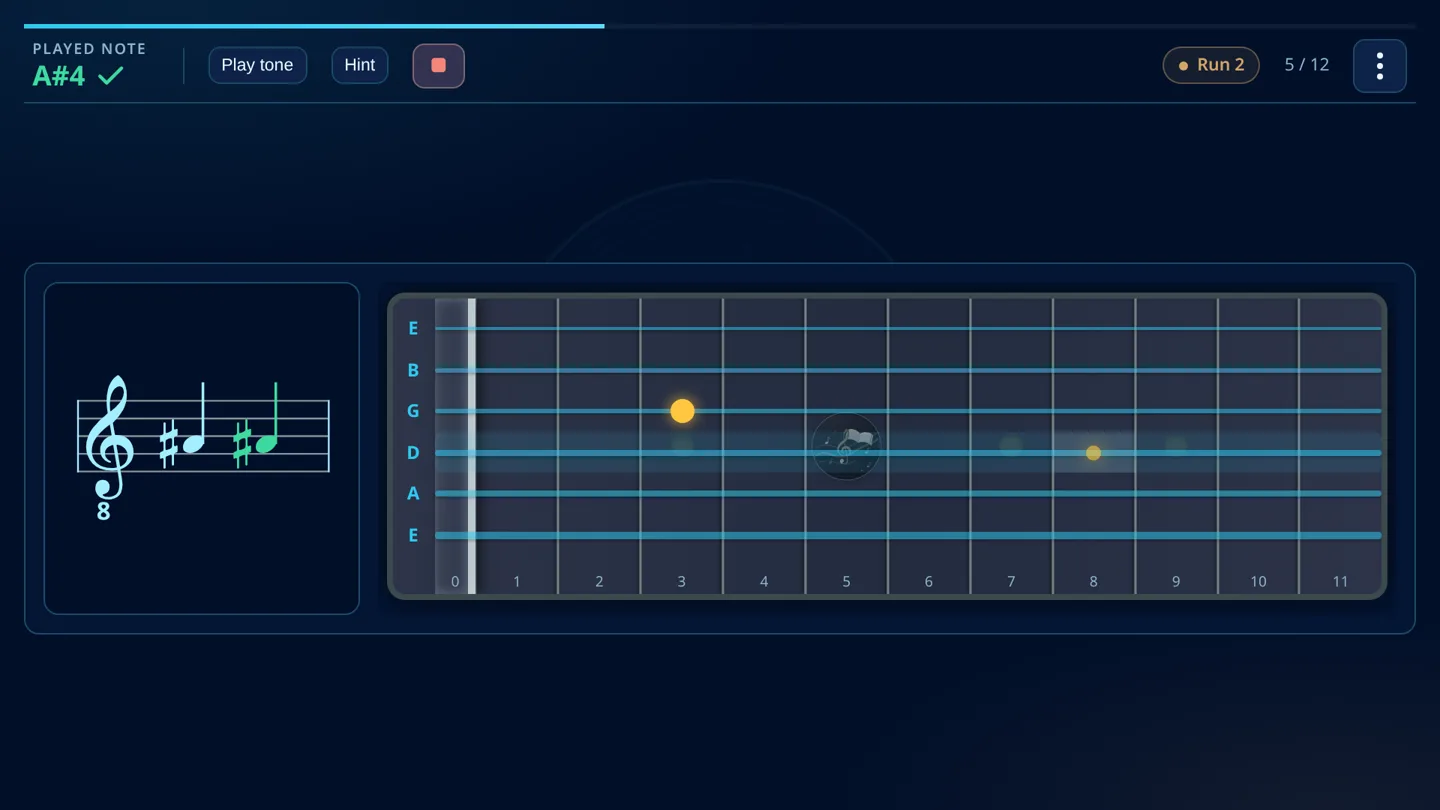
Screenshots
Octavo Train
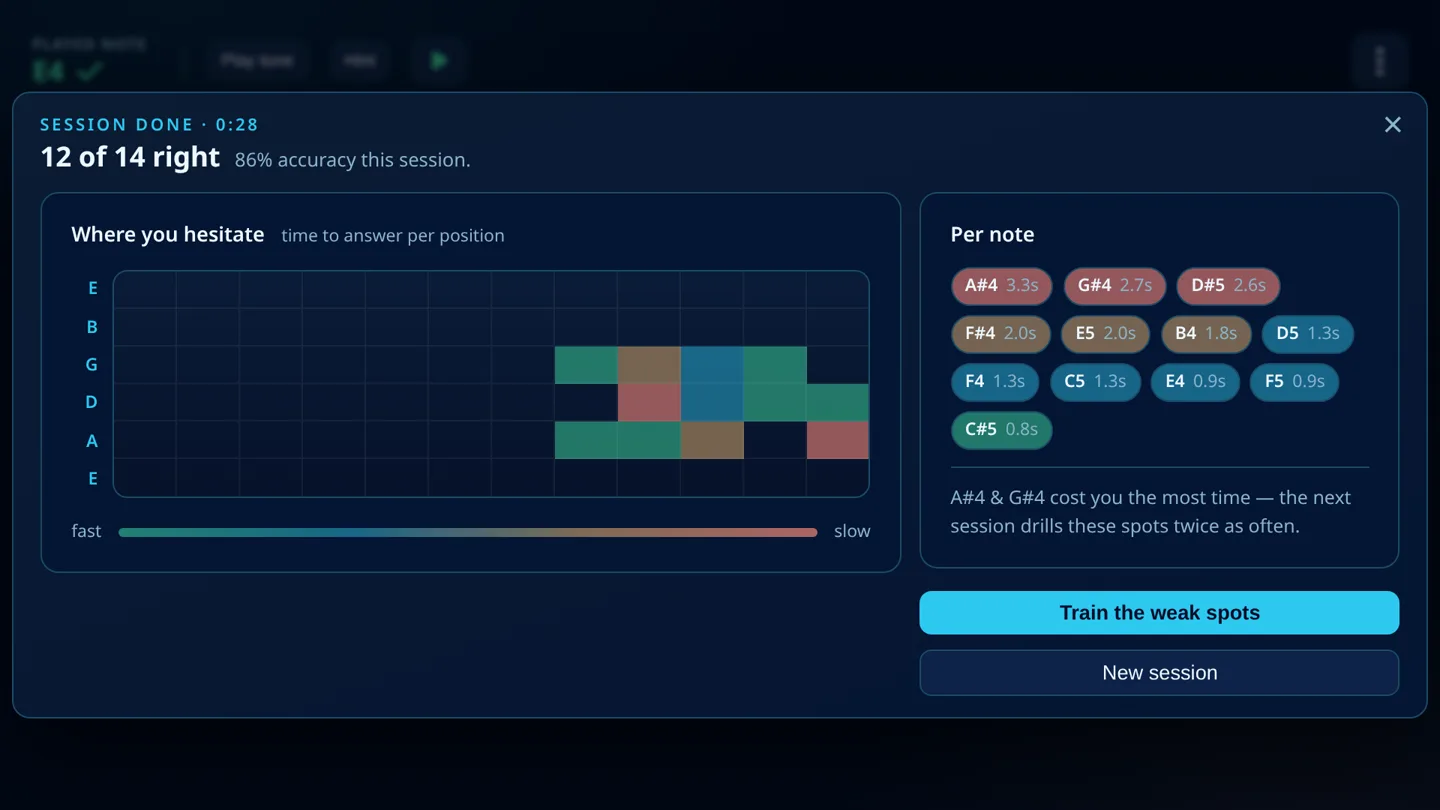
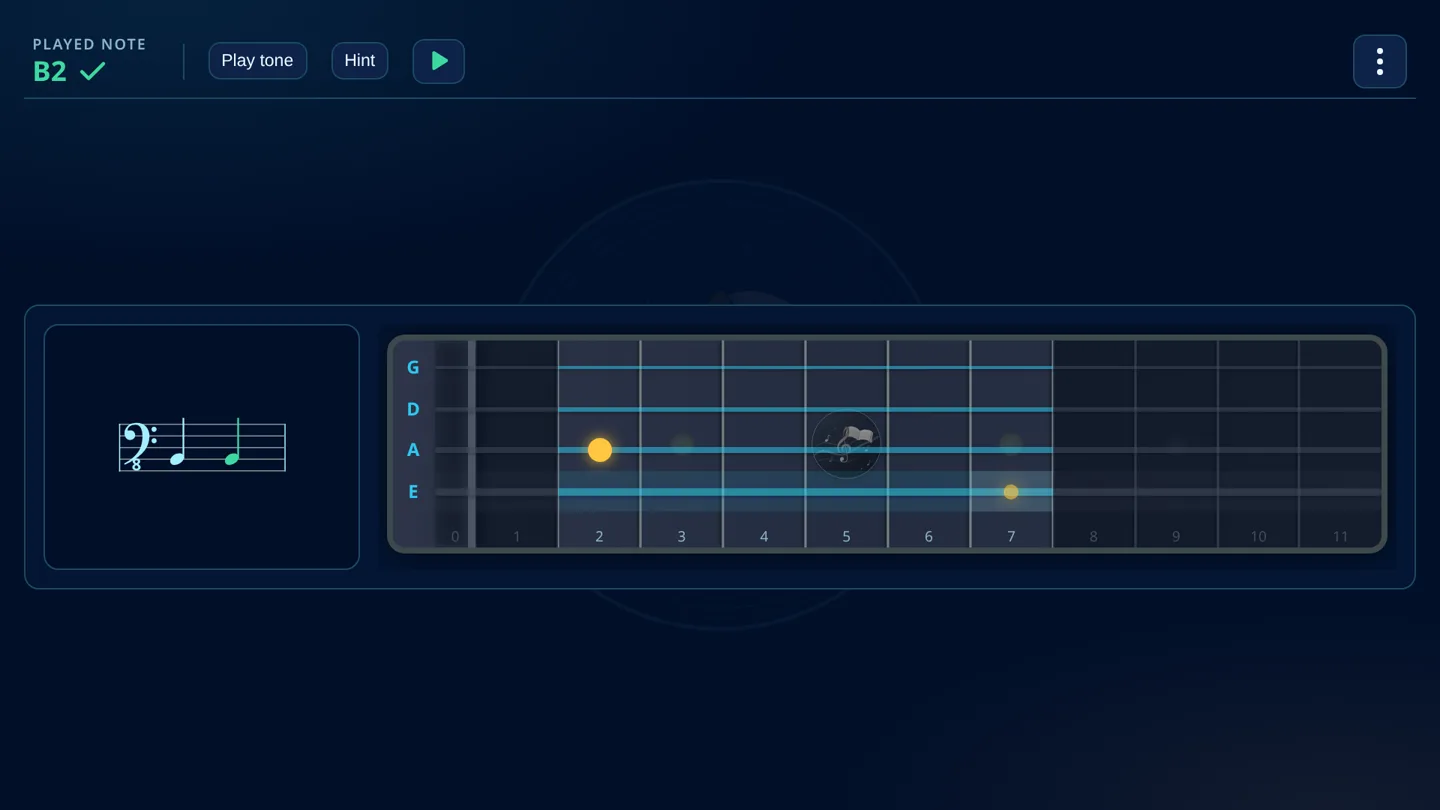
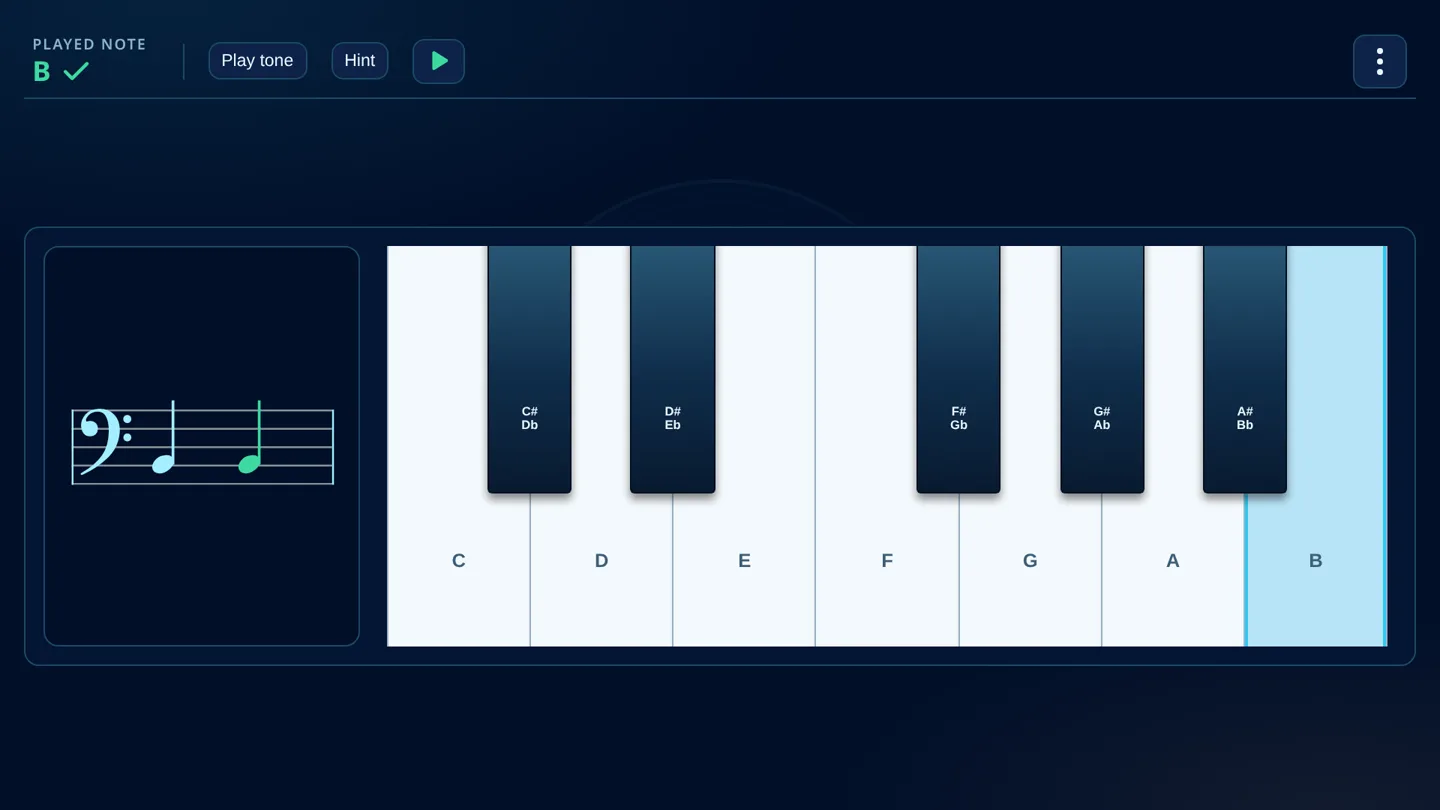
How it works
One note. One move. Next.
No menus, no stressful points – just the loop that builds note reading into muscle memory.
- 01
A note appears
In the treble or bass clef, within your practice range – on the staff or on ledger lines. Never the same note twice in a row.
- 02
You answer
On the fretboard, the bass or the note names. On string instruments both note and string must match – the target string is highlighted.
- 03
You hear and see right away
Correct – and the next note follows automatically. Wrong – try again; after three wrong tries the app reveals the answer.
Features
Built for the way you actually practise
Treble & bass clef
Both clefs, on the staff or on ledger lines above or below. Octave transposition as used in guitar and bass notation (“8” at the clef).
Guitar, bass or note names
Fretboard for six-string guitar and four-string electric bass with fret numbers and markers – or keyboard keys for pure note reading.
Adaptive scoreboard
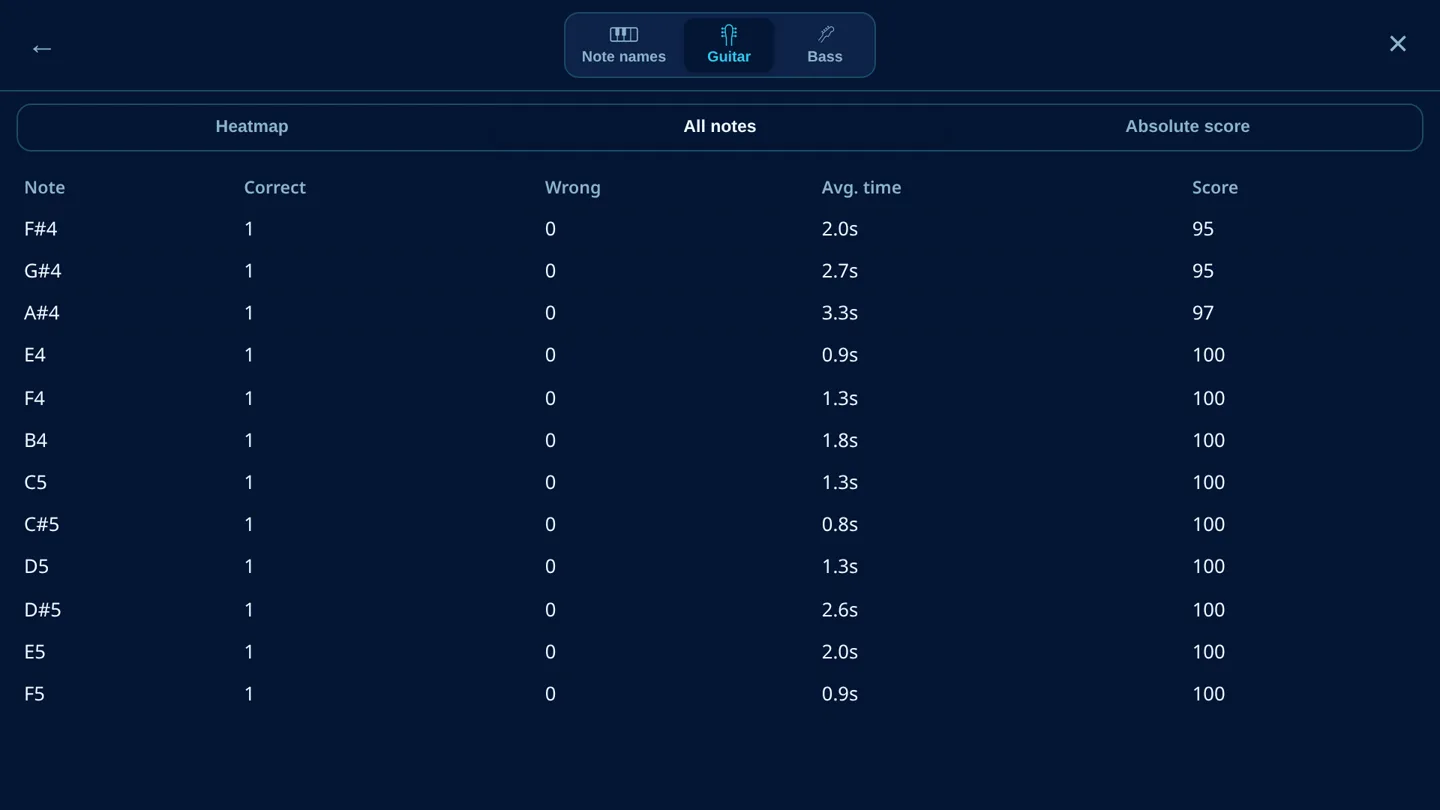
A score per note from speed, hit rate and wrong tries. Weak notes come up more often, solid ones less – one tap practises your weak spots.
Three training modes
By count (e.g. 20 notes), by time (1 to 30 minutes) or free practice without an end and without scoring.
Summary & heatmap
Hit rate, average response time and best run. The fretboard heatmap shows where you take the longest – separately for each instrument.
Choose your fret range
Pick the position you want to practise with a slider. Frets outside are greyed out.
German & international names
Switch between c′, H and C4, B4. Plus naturals only, sharps, flats, or everything mixed.
Hints that stay fair
Listen to the target note or show its position on the instrument. Hints count in your score – so it stays honest.
Set up in a minute
On first launch a wizard sets language, notation, instrument and practice range. English, German, Spanish and French.
Who is Octavo Train for?
- Anyone learning guitar or electric bass who wants to read notes, not just tabs.
- Musicians learning a new clef – from treble to bass clef, for example.
- Anyone who wants to sight-read or brush up their music reading.
- Teaching: short two-minute sessions, ideal in landscape on a tablet or phone.
Install the web app
Octavo Train without an app store – straight onto your device
Octavo Train runs as a Progressive Web App (PWA) in your browser. Once installed it starts like any other app: with its own icon on the home screen, in its own window, and even without internet.
No store, no account
No sign-up, no store download. A few taps in your browser are all it takes.
Its own app icon
Launch it from the home screen, dock or start menu – in its own window without an address bar.
Works offline
After the first load the app runs without a connection – in the rehearsal room, on the train, on stage.
Always up to date
Updates arrive automatically on the next launch. Nothing to install, nothing to maintain.
Your data stays with you
Settings and content are stored in your device’s browser – not on our server.
On every device
Phone, tablet or computer: Android, iPhone, iPad, Windows, macOS and Linux.
How to install Octavo Train
First open train.octavo-notes.com, then follow the steps for your device.
opens train.octavo-notes.com in a new tab
 Octavo Traintrain.octavo-notes.com
Android Chrome, Edge, Samsung Internet
- Open train.octavo-notes.com in Chrome.
- Tap the menu in the top right corner.
- Choose Install app or Add to Home screen.
- Confirm with Install. Octavo Train appears on your home screen and in the app drawer.
iPhone & iPad Safari (Chrome and Edge from iOS 16.4)
- Open train.octavo-notes.com in Safari.
- Tap the Share icon – at the bottom on iPhone, top right on iPad.
- Scroll down and choose Add to Home Screen .
- Tap Add. From now on Octavo Train launches full screen from your home screen.
Windows, macOS, Linux Chrome or Edge
- Open train.octavo-notes.com in Chrome or Edge.
- Click the install icon on the right of the address bar.
- Alternatively: menu → Cast, save and share → Install page as app (Chrome) or Apps → Install this site as an app (Edge).
- Confirm with Install. Octavo Train opens in its own window and sits in your start menu or Applications folder.
Mac with Safari Safari on macOS Sonoma or later
- Open train.octavo-notes.com in Safari.
- In the menu bar choose File → Add to Dock.
- Confirm with Add. Octavo Train now lives in your Dock and Applications folder.
Firefox on desktop cannot install web apps. The web version still works there – just in a browser tab. Uninstalling works like for any other app: long-press the icon, or use the menu in the app window.
Good to know
- The web app is complete – the same features as the store versions, and just as free.
- Once installed, Octavo Train starts full screen in landscape – keeping the fretboard within thumb’s reach.
- Settings and progress stay in your browser’s storage. If you clear the site data, your progress starts over.
- No cookies, no tracking, no ads – in the web app too.
Two minutes. Every day.
Launch Octavo Train in your browser now or install the web app. Store versions for Android and iOS are coming soon – if you’d like to test earlier, apply for the beta.